Screenshots that tell you what’s in them.
No more files that all start with “Screenshot”. ShiftCommand4 sits in your Mac’s menu bar and gives each new screenshot a title that describes it. Your existing files stay exactly as they are.
It runs on your Mac with the local AI built into macOS 27, so nothing leaves your computer.macOS 27 or later must be installed on your Mac to run ShiftCommand4.

$4.99 / €4.99
Available on the Mac App Store. BuyWithout
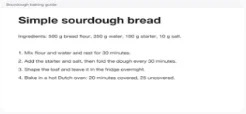 Screenshot 2026-11-12 at 9.14.56 AM.png
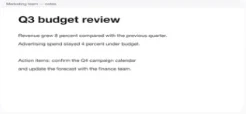 Screenshot 2026-11-12 at 9.15.12 AM.png
 Screenshot 2026-11-12 at 9.15.27 AM.png
With ShiftCommand4
- Simple sourdough bread· 12-11 09.14.png
- Q3 budget review· 12-11 09.15.png
- Image of a woman· 12-11 09.15.png
Illustration with made-up file names.

The best of ShiftCommand4
A clear headline becomes the title
If your screenshot has a big headline (its largest text, 2 to 8 words, in the language of your titles), that headline becomes the file name. If it doesn't, the AI decides.
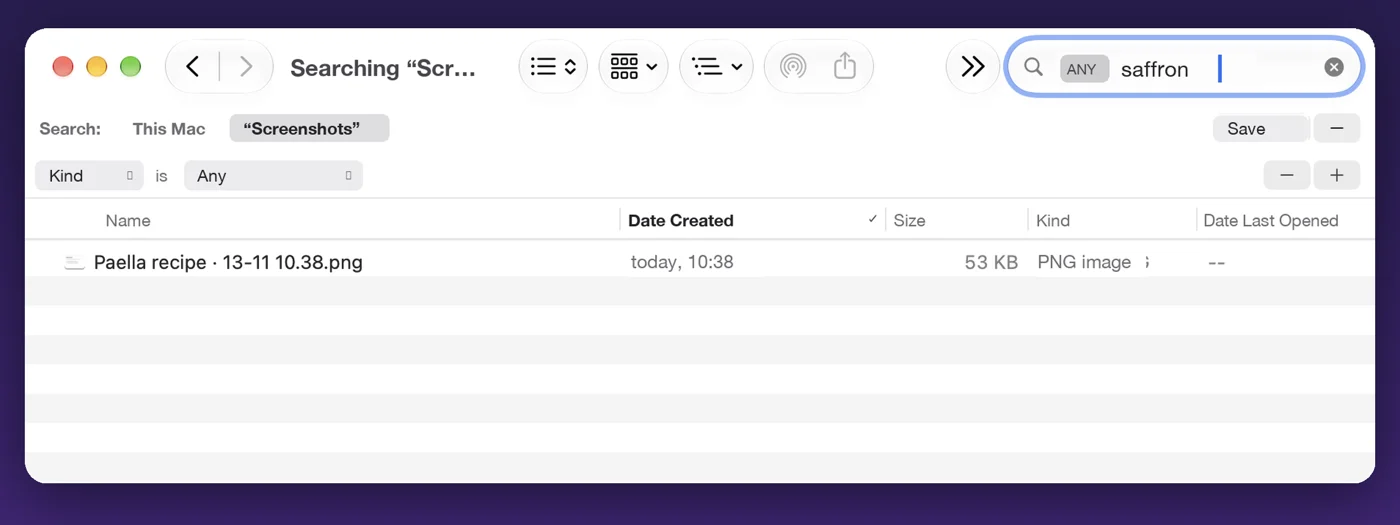
Find a screenshot by what's inside it
Turn on Save Text in Finder Comment (it's off by default) and the text read in each new screenshot is saved in its Finder comment. Then Spotlight or a Finder search finds the screenshot by any word that appears in the image, even if it isn't in the title.
Built for the screenshots you haven't taken yet
Most tools tidy up the past. ShiftCommand4 looks ahead: from the moment you install it, each new screenshot gets a useful name. Nothing you already have is renamed, moved or reorganized.
Titles that say something
Instead of “Screenshot 2026-11-07 at 18.33.49”, you get a short title about what the screenshot shows or says.
Stays on your Mac
Reading the text and writing the title both happen on your Mac, with Apple's own tools. The app has no code that connects to the internet.
Always in your control
Pause it, pick the folder it watches, fix a title, or send a file back to its original name with one click.
Easier to find later
Optionally, it can save the text it read in the file's Finder comment, so Spotlight can find the screenshot by words inside it.
How it works
Three steps, and then you mostly forget it's there.
Install and leave it running
It lives in the menu bar. The first time, you choose the folder where your screenshots are saved (usually the Desktop) and it watches only that one. A welcome window explains it all, and you can reopen it from Help…
Take screenshots as usual
Press
ShiftCommand4(or any way you like). A few seconds later the file gets its new name. It also works withShiftCommand3and5. Screenshots only, not videos.Find them by title
The name is the title first, then a short date and time:
Sourdough bread recipe steps · 08-11 20.47.png
- Reads the text
- Writes the title
- In the language you choose
With little text, it describes the picture or uses a generic title, so every new screenshot gets one.

Even when there's no text to read
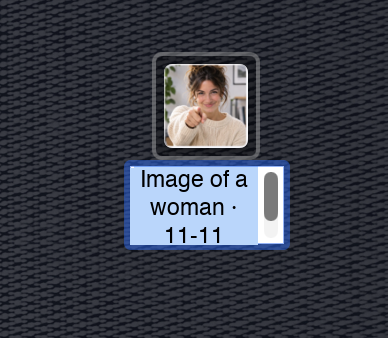
Until now, a screenshot of a photo or a picture was just another “Screenshot 2026-11-07 at 18.33.49”. ShiftCommand4 adds something new: when there's little or no text, it describes what it sees and uses that as the title, right in Finder.
It does this only when it's clearly sure. If it can't tell what the screenshot shows, it uses a generic title such as “Screenshot without readable text”.
You'll get used to it fast
It's great: once your screenshots start getting titles on their own, it's easy to forget ShiftCommand4 is working. Until one day you take a screenshot on a friend's Mac that doesn't have it installed, and it keeps its usual “Screenshot…” name.
Not sure why a screenshot didn't get a title? See the questions below.
Easy to correct, easy to undo
A title will sometimes be off, and that's fine, because fixing it takes a click.
- Pause and resume from the menu bar whenever you want.
- Recently Renamed: correct the title, go back to the original name, or undo.
- Correct Last Title… type the one you want or ask the AI for an idea.
- Learns your taste: your corrections are used as examples. Nothing is retrained.

Your privacy, from the start
We know your screenshots can contain anything and be very varied. ShiftCommand4 is built so everything stays on your Mac.
Only on your Mac
We take advantage of the text recognition built into macOS 27 itself, so no outside AI is ever used to see what is in your screenshot.
No accounts, no tracking
We don't collect your screenshots, your titles or any data about how you use the app.
Careful with sensitive data
The app tries to keep passwords, keys and card or bank numbers out of the titles it writes. If you prefer, you can turn on an option so those screenshots keep their original name.
More
The option is called “Skip Screenshots with Sensitive Data” and it is off by default. It is a simple check that runs only on your Mac. We try to keep those details out of the title, but we can't guarantee it: the AI can make mistakes.
Price and availability
$4.99 / €4.99
ShiftCommand4 is available on the Mac App Store.

Questions
Will it rename the screenshots I already have?
No. It only renames screenshots taken after you install it (or after you resume it or change the watched folder). Older files are never touched automatically. Renaming older files on demand is something we may add later.
Which languages does it work with?
ShiftCommand4 relies on Apple Intelligence, which, according to Apple, works with your Mac and Siri set to Chinese (simplified and traditional), Korean, Danish, German, Spanish, French, English, Italian, Japanese, Dutch, Norwegian, Portuguese, Swedish, Turkish or Vietnamese. Apple also warns that some features may not be available in every region or language, so the real list depends on your Mac and macOS. Titles come out in your Mac's language by default. We have tested English, Spanish, German and French: they are read and titled well, and the title comes out in your Mac's language. The text reader is tuned for languages with the Latin alphabet, so screenshots in Chinese, Japanese, Korean, Arabic or Cyrillic may not be read well. In the menu, Screenshot Title Language → Language of the Screenshot Text makes the title follow the language of the screenshot's headline or text (German, French, Spanish and English tested). It is a best-effort option, so sometimes the title may still come out in your Mac's language.
Does it work with screen recordings or videos?
No. ShiftCommand4 only titles screenshots, meaning images (PNG, JPG, HEIC or TIFF) that still have the standard macOS screenshot name. Screen recordings (.mov) and other files keep their name. It works with Shift + Command + 3, 4 and 5 when they save to your chosen folder. If you have several displays, Shift + Command + 3 creates one file per display, and each one gets its own title.
Does it work with Shift + Command + 3 (full screen)?
Yes, it names those too, but it works best with Shift + Command + 4. A selection usually shows one thing, so the title comes out clearer. A full-screen shot has many windows and texts at once, so the title can be vaguer, or the app may decide it isn't sure and leave the original name.
What about screenshots with sensitive data?
By default, those screenshots get a title like any other. We tell the AI not to include passwords, keys or card or bank numbers, and the app rejects titles with long numbers. The image itself is never changed: the app only changes its name. The text of a screenshot that looks sensitive is never saved in the Finder comment. If you prefer those screenshots to keep their original name, turn on “Skip Screenshots with Sensitive Data” in the menu.
What does “app name at the start of the title” do?
It's an optional setting, off by default. When it's on, the title starts with the app that was in front of your screen when you took the screenshot, like “Safari · …”. It's just the app in front, not necessarily the one you selected or captured.
Does anything leave my Mac?
No. Reading the text and writing the title both run on your Mac. ShiftCommand4 contains no code that connects to the internet, it has no network permission, and it doesn't collect your data.
Are my files safe?
ShiftCommand4 makes no network connections: it has no server, no account and no telemetry, and it has no network permission, so it can’t send anything out of your Mac. Your files stay where they are, on your drive and under your control. The app only renames your new screenshots and, if you turn that option on, writes their text in the Finder comment using your system’s on-device AI.
What if it gives a bad title?
Open the menu bar icon → Recently Renamed. You can correct the title, mark it as bad (the file goes back to its original name) or undo it. For the newest file, use Correct Last Title… or Undo Last Rename directly in the menu.
Which language are the titles in?
By default, your Mac's system language. You can switch to the language of the text in each screenshot instead. The app's menus follow your Mac's language (Spanish if your Mac is set to Spanish, English otherwise), and you can switch them in Interface Language.
What does the Finder comment option do?
It's off by default. When you turn it on, the text read in each new screenshot is saved in the file's Finder comment, so you can find the screenshot by searching in Finder or Spotlight for any word in it. It never overwrites a comment you already wrote. Note that the comment can travel with the file if you copy it to another Mac or disk.
Is this the only app that does this?
No. Other apps also rename or organize screenshots with AI. ShiftCommand4 is a small, private, one-purpose option that works on your Mac and looks forward rather than reorganizing the past.
Is it made by Apple?
No. ShiftCommand4 is an independent app. “Shift-Command-4” is just the name of the macOS shortcut for taking a screenshot, and we're not affiliated with or endorsed by Apple.
Why aren't my screenshots getting titles?
Usually it's one of these. Check them in order:
- It isn't running on that Mac. ShiftCommand4 only works on a Mac where it's installed and open. Look for its icon in the menu bar. On another Mac, it needs to be installed there too.
- It's paused. The first line of the menu says “paused”. Choose Resume. Only screenshots taken after you resume get a title.
- Apple Intelligence is off or not available. The menu shows a warning that says what to do. A Mac that doesn't support Apple Intelligence can't create titles. If the menu says “Apple Intelligence isn't ready yet”, wait a few minutes (the app keeps trying for up to an hour) and check that your Mac and Siri use the same language. If you installed macOS 27 recently, don’t worry: macOS can need much longer to get Apple Intelligence ready, sometimes days. ShiftCommand4 relies on Apple Intelligence, which macOS doesn't provide when your Mac starts up from an external drive. Start from the internal disk (System Settings › General › Startup Disk). Also, right after setup macOS can take a while to download Apple's model, and the menu shows “still getting ready”.
- It's watching a different folder, or none yet. The first time, the app asks you to choose your screenshots folder. The Folder item in the menu shows which one is being watched.
- It's the first screenshot after opening the app. It can take up to a minute while macOS gets text reading and the on-device AI ready. If it takes a while, a small notice appears near the top right of your screen. The next ones take a few seconds.
- It kept its name on purpose. This only happens if you turned on “Skip Screenshots with Sensitive Data” and the screenshot seems to contain sensitive data. Open Skipped Screenshots in the menu to see why, and give it a title yourself.
- It isn't a new screenshot with the standard macOS name. Only new screenshots (taken after you installed it, resumed it or changed the folder) that still have the standard macOS name are renamed.